
Change project settings
Set who asks for consent, who answers questions, reply times, notice languages, retention, children and breaches for every property.
Project settings apply to every property in the project. What you set here appears on consent notices, rights request pages and receipts.
Change a setting#
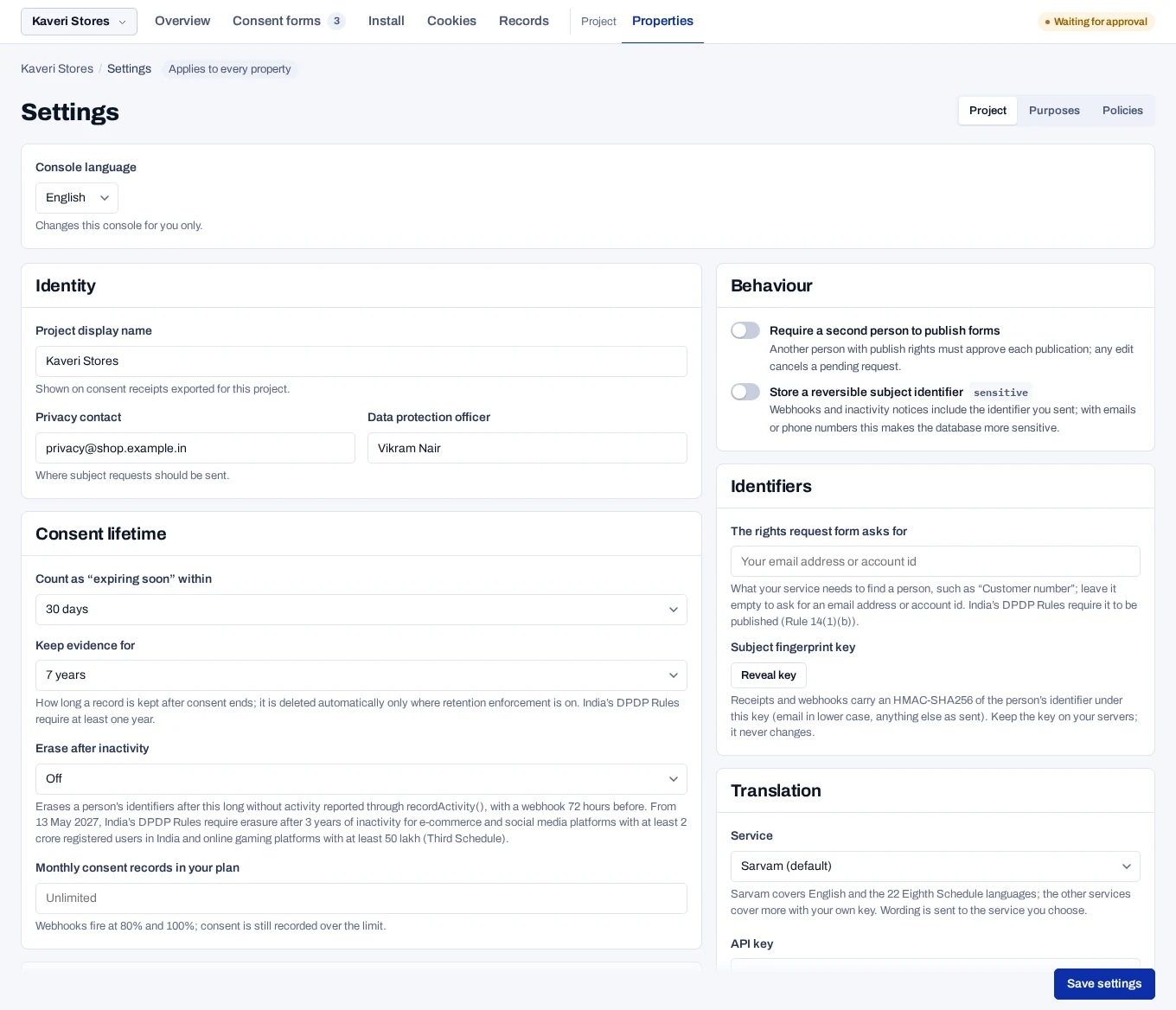
- Open Settings. The General tab opens.
- Find the section that holds the setting, and change it.
- Choose Save settings at the top of the page.
The console shows Settings saved. Until then, Discard puts back what was saved. Fix any field marked in red before you save.
DPDP readiness, at the top, lists each duty of the DPDP Act and Rules that your settings meet or miss. Choose Fix beside a check to go to its field.
The sections of the General tab#
| Section | What you set |
|---|---|
| 1. Who is asking for consent | The Data Fiduciary legal name, the name people recognise and the registered office address. Whether the Government has notified you as a Significant Data Fiduciary. |
| 2. Who answers questions about personal data | Your Data Protection Officer, or someone else who answers for you, with a name, business email and business phone. Under Where rights requests arrive, the email and phone shown with the request form. |
| 3. Rights and grievances | How people prove who they are, how fast you reply to rights requests and grievances, and the grievance officer. Without one, grievances go to the person in section 2. |
| 4. Notice languages and links | The languages people can choose, and the link to complain to the Data Protection Board. |
| 5. Keeping and erasing data | How long proof of notice and consent is kept, and erasure when a person is inactive. See Erase people after inactivity. |
| 6. Children and guardians | Whether you collect data of a child, or of a person with a disability who has a lawful guardian. |
| 7. Personal data breach | Who leads the response to a breach, and how to reach them. |
Below the sections:
- Platform team access lets the platform team read the project for a short time. See Give support access.
- Publishing holds A second person approves each notice and Store a reversible identifier.
- For your developer holds identifiers, the translation service, hosting, the project IDs and your console language.
- Close this project deletes the project at the end of your contract. See Close a project.
The other tabs are People and roles, Approvals and Policies.
India needs someone who answers
A form shown in India cannot be published until section 2 has an email. The banner shows it.
Defaults#
| Setting | Default |
|---|---|
| This person is | Data Protection Officer |
| How people prove who they are | Registered mobile number and Registered email |
| Reply to rights requests within | 30 days. A change applies to new requests only |
| Reply to grievances within | Empty until you choose a period |
| Keep proof of notice and consent for | 7 years |
| Erase when a person is inactive | Off |
| Flag consent as “expiring soon” within | 30 days. Saved, but the console always counts 30 days |
| A second person approves each notice | Off. See Approve a publication |
| Store a reversible identifier | Off. When on, the database holds more personal data |
| Translation Service | Sarvam. See Set up the translation service |
Give developers the fingerprint key#
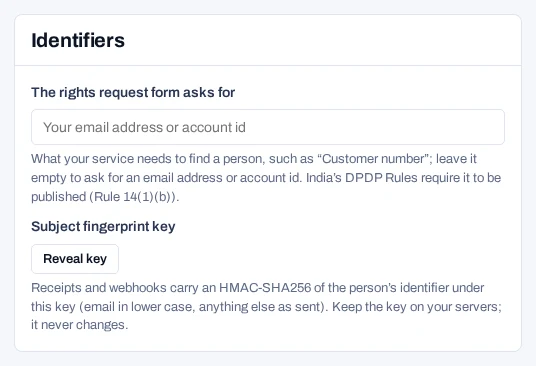
Receipts and webhooks name a person by a fingerprint: a keyed hash of their identifier. Your developers need the key to match a webhook to a customer.
- Open For your developer. In the Identifiers panel, choose Reveal key.
- Click the key to copy it.
- Pass it to your developers in a safe way.
Each reveal is written to the audit log. The key never changes. Keep it on your servers.